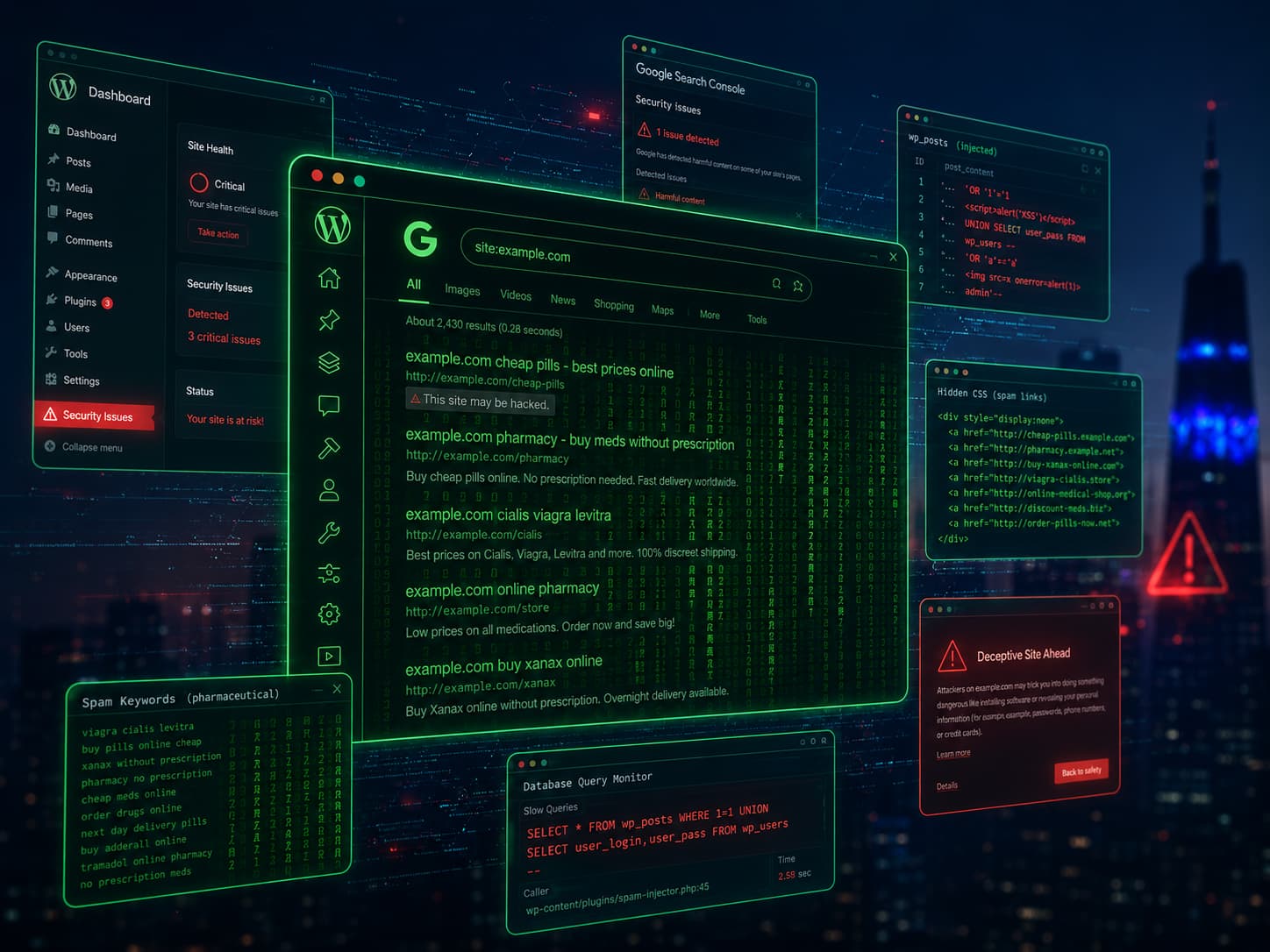
If Google is showing “This site may be hacked” under your search result, Google has detected spam, malware, or unauthorized content on your site. The warning is roughly 95% accurate — even if your homepage looks fine to you, attackers are almost certainly serving different content to Googlebot.
To remove the warning:
- Confirm the issue in Google Search Console under Security & Manual Actions.
- Find the malware — it’s usually a redirect hack, pharma hack, or Japanese SEO spam.
- Clean every persistence point — files, database, cron, hidden admin, mu-plugins.
- Submit a Security Issues review in Search Console.
- Wait 24–72 hours. The warning is removed automatically after Google reverifies the site is clean.
This guide walks through every step, plus the differences between “This site may be hacked” (a search-results warning) and the more aggressive “Deceptive site ahead” full-page warning some visitors see.
Table of Contents
- What the “This site may be hacked” warning actually means
- The two warnings, and why they look different
- How to confirm what Google found
- Clean the site: a focused removal protocol
- Submit the right review request
- What to expect after submission
- How to prevent the warning from coming back
- FAQ
1. What the “This Site May Be Hacked” Warning Actually Means
When Google shows the gray notice “This site may be hacked” beneath your search result, it’s communicating one specific finding: Google’s automated systems detected that an unauthorized third party has modified your site’s content in a way that resembles known hacking patterns.
The warning is generated by Google’s Safe Search and search-quality systems, not Safe Browsing. That distinction matters because:
- “This site may be hacked” appears only inside Google search results.
- It does not show as a full-page warning in Chrome, Firefox, or Safari.
- It does not trigger Safe Browsing’s
https://www.google.com/safebrowsing/diagnosticlisting. - Site owners often don’t notice it for weeks because it doesn’t appear when typing the URL directly.
It is, however, devastating for organic traffic. We’ve seen click-through rates drop 70–90% the day the warning appears. Visitors who see “This site may be hacked” almost universally choose a different search result.
The most common patterns Google detects:
- Cloaking / deceptive content — your site shows different content to Googlebot than to visitors (the pharma hack signature).
- Auto-generated spam pages — thousands of low-value pages in unfamiliar URL patterns (Japanese SEO spam).
- Hidden links — outbound links to spam sites concealed via CSS, font sizes, or off-screen positioning.
- Search-result keyword injection — page titles or meta descriptions containing terms like “Viagra,” “Cialis,” counterfeit luxury brand names, or other spam terms.
If you see the warning, your site has one of those problems. We’ll find which.
2. The Two Warnings, and Why They Look Different
There are actually two separate Google warnings people confuse:
Warning A — “This site may be hacked” (search results only)
Where you see it: As a gray subline under your URL in Google search results. What triggers it: Spam, hidden content, or cloaking — the search-quality side of Google’s detection. Where you fix it: Search Console → Security & Manual Actions → Security issues (or sometimes Manual actions).
Warning B — “Deceptive site ahead” / “The site ahead contains malware” (full-page red warning)
Where you see it: A full red browser page, often with “Back to safety” as the only easy action. What triggers it: Active malware delivery, phishing pages, or a redirect to a known malicious destination — Google Safe Browsing’s detection. Where you fix it: Search Console → Security & Manual Actions → Security issues (always, not Manual Actions).
Many infected WordPress sites have both warnings simultaneously — the search-result warning because of cloaked spam, and the browser warning because the malware also redirects mobile visitors to a phishing page. The cleanup steps below handle both.
A third related signal — a manual action in Search Console — isn’t a public warning visible to visitors but does suppress your rankings dramatically. Cleanups for any of these three follow the same path.
3. How to Confirm What Google Found
Don’t guess. Google tells you exactly what triggered the warning if you ask the right place.
Step 1 — Verify your site in Search Console
If you haven’t, do it now using a DNS TXT record (the most resilient verification method that survives even if the attacker has file-system access).
Step 2 — Read the Security Issues report
In Search Console, go to Security & Manual Actions → Security issues. You’ll see one of:
- “Hacked: code injection” — malicious code added to existing pages.
- “Hacked: content injection” — your pages have new spam content (the most common pharma hack pattern).
- “Hacked: URL injection” — entire new spam pages have been added (the Japanese SEO spam pattern).
- “Malware” — site is serving binary malware to visitors.
- “Social engineering content” — phishing or fake login pages on your site.
- “Harmful programs” — links to or downloads of malicious software.
- “Cloaking” — different content shown to Googlebot than to visitors.
Each entry includes example URLs that triggered the detection. Save those URLs — they’re your roadmap for cleanup.
Step 3 — Read the Manual Actions report
Go to Security & Manual Actions → Manual actions. Common entries:
- “User-generated spam”
- “Spammy structured markup”
- “Cloaking and/or sneaky redirects”
- “Hidden text and/or keyword stuffing”
- “Pure spam”
Save these too. The example URLs and reason fields tell you exactly what Google is seeing.
Step 4 — Check Google Safe Browsing transparency report
Visit https://transparencyreport.google.com/safe-browsing/search?url=yourdomain.com — you’ll see whether Google Safe Browsing has flagged your site for malware, phishing, or unwanted software, with the date of detection and the date of last clean check.
Step 5 — Inspect the example URLs Google provided
For each example URL Google gave you in step 2 or 3:
# Fetch as Googlebot
curl -A "Mozilla/5.0 (compatible; Googlebot/2.1)" https://yourdomain.com/example-url > googlebot-view.html

# Fetch as a normal mobile visitor
curl -A "Mozilla/5.0 (iPhone; CPU iPhone OS 17_0)" https://yourdomain.com/example-url > visitor-view.html

# Diff them
diff googlebot-view.html visitor-view.html
Differences between the two are your cloaking. Anything in the Googlebot version that isn’t in the visitor version is the spam Google is seeing.
This step alone tells you what type of infection you have, which determines which cleanup playbook to use:
- Pharma keywords (Viagra, Cialis, Tramadol, Phentermine, online pharmacy) → Pharma hack guide.
- Japanese characters or counterfeit goods keywords → Japanese SEO spam guide.
- Redirects to other domains → Redirect hack guide.
- Hidden
<a>tags pointing offsite → covered below. - Generic obfuscated content → continue with the steps in section 4.
4. Clean the Site: A Focused Removal Protocol
If you’ve already identified the infection type, jump to the relevant guide above. If you haven’t, this generalized protocol works for most “This site may be hacked” cases.
Step 0 — Backup the infected state for forensics
tar -czf infected-files-$(date +%Y%m%d-%H%M).tar.gz /var/www/yoursite/
mysqldump -u root -p yoursite_db > infected-db-$(date +%Y%m%d-%H%M).sql
Mark infected. Don’t restore from it.
Step 1 — Maintenance mode
wp maintenance-mode activate
Step 2 — Find recently modified files
# All PHP files modified in the last 30 days
find /var/www/yoursite/ -name "*.php" -mtime -30 -printf "%TY-%Tm-%Td %TH:%TM %p\n" | sort

# Files containing common malware indicators
grep -rEln "eval\s*\(\s*base64_decode|str_rot13\s*\(.*base64|gzinflate\s*\(\s*base64" /var/www/yoursite/

# PHP files anywhere they shouldn't be
find /var/www/yoursite/wp-content/uploads/ -name "*.php"
Every PHP file under /wp-content/uploads/ is malware — uploads should never contain executable code. Quarantine them.
Step 3 — Replace WordPress core, plugins, and themes
cp wp-config.php /tmp/wp-config.php.safe
cp -r wp-content/uploads /tmp/uploads.safe

wp core download --force --skip-content
wp plugin list --field=name | xargs -I {} wp plugin install {} --force
wp theme list --field=name | xargs -I {} wp theme install {} --force
Delete every nulled or pirated plugin/theme in the process — they are the most common single entry point for the kinds of malware that trigger Google’s “may be hacked” warning.
Step 4 — Empty the mu-plugins directory
rm -rf /var/www/yoursite/wp-content/mu-plugins/
mkdir /var/www/yoursite/wp-content/mu-plugins/
Step 5 — Clean the database
-- Suspicious encoded options
SELECT option_name, LENGTH(option_value) FROM wp_options
WHERE LENGTH(option_value) > 50000 OR option_value LIKE '%base64_decode%';

-- After review, delete the malicious ones:
DELETE FROM wp_options WHERE option_name IN ('_hdra_core', /* etc */);

-- Remove unauthorized administrators
SELECT u.ID, u.user_login, u.user_email, u.user_registered
FROM wp_users u
INNER JOIN wp_usermeta m ON u.ID = m.user_id
WHERE m.meta_key = 'wp_capabilities' AND m.meta_value LIKE '%administrator%';

-- For each rogue ID:
DELETE FROM wp_users WHERE ID = <id>;
DELETE FROM wp_usermeta WHERE user_id = <id>;

-- Strip injected content from posts
UPDATE wp_posts
SET post_content = REGEXP_REPLACE(
    post_content,
    '<div[^>]*style[^>]*(absolute|display:none|left:-9999)[^>]*>.*?</div>',
    ''
)
WHERE post_content REGEXP 'position:\\s*absolute|display:\\s*none|left:\\s*-?9999';
Step 6 — Hidden links cleanup (specific to “This site may be hacked”)
The most-overlooked cleanup detail. Hidden links are usually <a> tags positioned off-screen via CSS:
<!-- Common hidden-link patterns -->
<div style="position:absolute;left:-9999px;">...spam links...</div>
<div style="display:none;">...spam links...</div>
<span style="font-size:0;">...spam links...</span>
<div style="height:1px;overflow:hidden;">...spam links...</div>
Search:
-- In post content
SELECT ID, post_title FROM wp_posts
WHERE post_content REGEXP 'style="[^"]*(left:\\s*-9999|display:\\s*none|font-size:\\s*0)';

-- In post meta (some themes store custom HTML in meta)
SELECT post_id, meta_key FROM wp_postmeta
WHERE meta_value REGEXP 'style="[^"]*(left:\\s*-9999|display:\\s*none|font-size:\\s*0)'
  AND meta_value REGEXP '<a [^>]*href';

-- In wp_options widget data
SELECT option_name FROM wp_options
WHERE option_value REGEXP 'style="[^"]*(left:\\s*-9999|display:\\s*none|font-size:\\s*0)'
  AND option_value REGEXP '<a [^>]*href';
Also check the active theme’s header.php, footer.php, and sidebar.php — these are common locations for a hidden-links block injected to appear sitewide.
Step 7 — Clean .htaccess and wp-config.php
Replace .htaccess with the WordPress default. In wp-config.php, anything outside the <?php block, anywhere there’s eval(), base64_decode(), or gzinflate(), is malicious.
Step 8 — Rotate every credential
wp user list --field=ID | xargs -I {} wp user reset-password {}
curl https://api.wordpress.org/secret-key/1.1/salt/  # then paste into wp-config.php
Also rotate database password, SFTP/SSH credentials, and hosting control panel password.
Step 9 — Verify with a server-side scan
grep -rEln "eval\s*\(|base64_decode|str_rot13|gzinflate" /var/www/yoursite/ \
  | grep -vE "(wp-includes|vendor|node_modules)/"
Should return zero relevant matches.
Step 10 — Re-fetch the example URLs Google flagged
For each example URL Google provided in Search Console:
curl -A "Googlebot" https://yourdomain.com/example-url | grep -iE "(viagra|cialis|激安|コピー|<script[^>]*\.shop)"
Should return nothing. If it returns anything, the cleanup is incomplete — repeat steps 2–7.
Step 11 — Take site out of maintenance mode
wp maintenance-mode deactivate
5. Submit the Right Review Request
This is where most cleanup attempts fail — not in the cleaning, but in submitting a review that gets approved on the first try.
For “Security issues” entries
Go to Search Console → Security & Manual Actions → Security issues → Request a review. The request form asks “What did you do to address the issue?” Write a focused, technical, honest response.
A good review request looks like this:
Our WordPress site was infected with [pharma SEO spam / a redirect hack / Japanese SEO spam / etc.]. The infection appears to have entered through [a vulnerability in plugin X version Y / a brute-forced admin password / a nulled premium plugin].
We have taken the following remediation steps:
- Replaced WordPress core, plugins, and themes with clean copies from the official directories.
- Deleted all malicious files including [list specific files / patterns].
- Cleaned the database of injected payloads in
wp_options, malicious posts, and removed [N] unauthorized administrator account(s). - Reset all administrator passwords and rotated database, SFTP, and hosting credentials.
- Generated fresh WordPress security salts.
We have implemented these prevention measures:
- Server-side malware scanning (runs outside WordPress so malware can’t tamper with it).
- WAF with virtual patching for known plugin vulnerabilities.
- Two-factor authentication on all administrator accounts.
- Daily off-server backups.
- File editing disabled (
DISALLOW_FILE_EDIT).
The example URLs you provided ([list 2–3 of the URLs from the Security Issues report]) now return clean content with no spam injected, which we have verified with curl using the Googlebot User-Agent.
What not to write:
- Vague claims like “we cleaned the site.” Google’s reviewer will assume you didn’t.
- Excuses or attempts to argue. The reviewer doesn’t care why it happened.
- Multi-paragraph backstory. The reviewer wants the technical facts and proof of cleanup.
For “Manual actions” entries
The submission flow is similar. Same kind of structured response, plus include:
- A clear statement that the spam content has been removed.
- For the “User-generated spam” / “Pure spam” cases, mention that all spam URLs now return HTTP 410 Gone so they will be deindexed.
Submission frequency
You can submit one review at a time. If the first review is denied, the response email tells you why — read carefully, fix the specific issue mentioned, then submit again. Do not submit multiple reviews in parallel; that just delays the queue.
6. What to Expect After Submission
Timeline
- 0–24 hours: Submission acknowledged. Search Console History tab shows “review pending.”
- 24–72 hours: Most “Security issues” reviews complete in this window for first-time hacks.
- 3–14 days: “Manual actions” reviews (especially for high-spam URL counts in Japanese SEO spam cases) take longer.
- 14+ days: If not resolved, your cleanup is probably incomplete. Re-check.
What changes when the warning lifts
Once Google approves the review:
- The “This site may be hacked” warning disappears from search results within hours.
- Manual action notices are removed from Search Console.
- Safe Browsing warnings stop appearing in Chrome / Firefox / Safari (within 24 hours of Google’s recheck).
- Rankings begin to recover — usually starting day 3–7 after the warning lifts.
What doesn’t immediately recover
- Click-through rate. Even with the warning gone, your pages have lower CTR for 30–90 days while user trust rebuilds.
- High-competition keywords. First-page rankings on competitive terms typically take 2–6 months to fully recover.
- Brand-search positions. These usually return within days. Competitive non-brand terms take longer.
- Featured snippets and rich results. These often need to be re-earned — Google doesn’t restore them automatically even after a successful review.
We’ve covered the SEO recovery process in detail in our post on what most site owners miss about WordPress security.
If the review is denied
Read the rejection email carefully. The most common reasons:
- Some spam URLs still return 200 instead of 410 / 404. Re-check with
curl -I. - Some example URLs still serve different content to Googlebot. Re-run the curl-as-Googlebot test.
- Hidden links still present in some pages. Re-search the database with the regex from step 6.
- Cloaking still active somewhere. Check
mu-plugins/,header.php,wp_optionsagain.
Fix the specific issue, then resubmit.
7. How to Prevent the Warning From Coming Back
About 50% of sites that get the “This site may be hacked” warning will get it again within six months if prevention isn’t in place. The recurring root causes:
1. The original entry point wasn’t closed
If a vulnerable plugin let attackers in, removing the malware without patching guarantees reinfection. Audit:
- Every plugin against WPScan.
- Plugins where the author hasn’t released a version in 6+ months — they’re abandoned.
- Page-builder add-ons specifically (a top entry vector in 2025–2026).
2. Cleanup was file-only
If the database loader survived, the cron rebuilds the file-resident half within an hour. Database cleaning is non-negotiable.
3. No virtual patching
Plugin vulnerabilities are exploited within four hours of disclosure. Official patches arrive 7–14 days later. The gap is when reinfections happen. Virtual patching at the WAF closes it.
4. Hosting-level compromise unaddressed
If your hosting password is in any breach (check at haveibeenpwned.com), attackers can reinfect at the hosting level no matter how clean WordPress is. Rotate hosting credentials and enable 2FA at the host.
A focused prevention checklist
- Server-side malware scanning (runs outside WordPress).
- WAF with virtual patching for top plugin CVEs.
- 2FA on every administrator (no exceptions).
- PHP execution disabled in
/wp-content/uploads/. DISALLOW_FILE_EDITandDISALLOW_FILE_MODSinwp-config.php.- Quarterly review of Search Console verified owners.
- Quarterly plugin/theme audit — remove anything unmaintained.
- Daily off-server backups, restored quarterly to verify.
- Database scanning enabled (most plugins skip this).
- Hidden-admin-user detection enabled.
- Every nulled or pirated plugin/theme deleted.
GuardianGaze ships these by default. If you’ve cleared a “This site may be hacked” warning once and don’t want to do it again, the prevention layer is what stops the second attempt before Google sees it. Get the free plugin or view paid plans.
8. Frequently Asked Questions
Why does Google show “This site may be hacked” when my site looks fine to me?
Almost every modern WordPress hack uses cloaking — serving different content to Googlebot than to visitors. You see your normal site. Googlebot sees spam. The warning comes from what Google is being shown, not what you’re shown. Verify by fetching your site with curl -A "Googlebot".
How long does it take to remove the “This site may be hacked” warning?
For a clean site that submits a successful review: 24–72 hours. For sites where the cleanup is incomplete: until you fix the remaining issues. The typical end-to-end timeline (detection → cleanup → review → warning removed) is 3–7 days for most WordPress hacks.
Will my SEO recover after the warning is removed?
Mostly, yes. Brand searches recover within days. Competitive non-brand keywords recover over 30–180 days. Sites caught and cleaned within two weeks of the initial infection recover almost fully. Sites infected for 3+ months sometimes see permanent rank drops on a few competitive keywords.
What’s the difference between “This site may be hacked” and “Deceptive site ahead”?
“This site may be hacked” is a search-results subline only — it’s a Google Search warning about cloaked or hacked content. “Deceptive site ahead” is a full-page red browser warning powered by Google Safe Browsing — it appears for sites actively serving malware, phishing pages, or harmful redirects. Many infected sites have both at once. Both are removed via the same Search Console review process.
Can I just contact Google support to remove the warning?
No. Google doesn’t provide one-on-one support for organic search issues. The Search Console review system is the official and only way to request removal of the warning.
Should I make my site private (noindex) while cleaning it?
No. Setting noindex on a hacked site is harmful — Google interprets it as you abandoning the URLs, and they fall out of the index. Use maintenance mode instead (a 503 response), which tells Google “come back later” without dropping rankings.
What if I don’t run WordPress?
The mechanics are similar for any CMS or static site. The cleaning steps differ (Joomla, Drupal, Magento, custom PHP, etc. each have their own malware ecosystems), but the Search Console review process is identical.
My host says the site is clean. Why is the warning still showing?
Either the cleanup actually missed something (most common), or Google hasn’t recrawled the example URLs since the cleanup (less common). First, verify each example URL with curl -A "Googlebot". Second, in Search Console, use URL Inspection → Request indexing on each example URL to push a recrawl.
How much does professional cleanup cost?
A specialist WordPress cleanup costs $200–$2,000 depending on infection complexity. Sucuri and Wordfence Care provide one-off cleanups in the $200–$500 range. Note that most cleanup-only services don’t include prevention, which is why 50% of sites get reinfected within six months. Spending the same money on a full security solution typically prevents the problem rather than just curing it.
Continue Reading
- Website Hacked? 17 Signs Your WordPress Site Is Compromised — full early-warning checklist.
- WordPress Pharma Hack: Detection, Removal & Prevention — the most common infection that triggers the warning.
- WordPress Redirect Hack: Detection & Removal Guide — for the redirect-flavor variants.
- WordPress Japanese SEO Spam Hack: Detection & Cleanup — for the new-URL variants.
Stop the warning from coming back. GuardianGaze’s server-side scanning, WAF, and virtual patching catch the malware Google flags before Google ever sees it. Install the free plugin or view paid plans.