
Website security is one of the most important aspects of managing a WordPress site. Whether you run a blog, business website, online store, or membership platform, malware can put your data, visitors, and reputation at risk.
The good news is that you don’t need to be a security expert to protect your website. A reliable WordPress malware scanner can help you detect threats, identify suspicious files, and take action before they cause serious damage.
In this guide, we’ll show you how to scan WordPress for malware using the free Guardian Gaze plugin and explain what to do if threats are found.
How Malware Gets Installed on WordPress Sites
Before learning how to scan your website, it’s important to understand how malware typically gets installed. Some of the most common causes include:
Outdated Plugins and Themes
Hackers frequently target websites running outdated plugins or themes that contain known security vulnerabilities.
Weak Passwords
Weak administrator passwords can be cracked through brute-force attacks, allowing attackers to gain access to your WordPress dashboard.
Nulled or Pirated Software
Many infected WordPress sites become compromised after installing nulled plugins or themes downloaded from untrusted sources.
Compromised Administrator Accounts
If an attacker gains access to an administrator account, they can upload malicious files, create hidden users, or install backdoors.
Insecure Hosting or Server Configurations
Improper server settings can create opportunities for attackers to upload or modify files on your website.
Once malware is installed, it may remain hidden while injecting spam links, redirecting visitors, stealing data, or creating backdoors that allow attackers to regain access later.
This is why regular WordPress security checks and malware scans are essential.
How to Scan WordPress for Malware with Guardian Gaze
Scanning your website with Guardian Gaze takes only a few minutes.
Step 1: Install the Free Guardian Gaze Plugin
Log in to your WordPress dashboard and navigate to:
Plugins → Add New
Search for Guardian Gaze and click:
- Install Now
- Activate
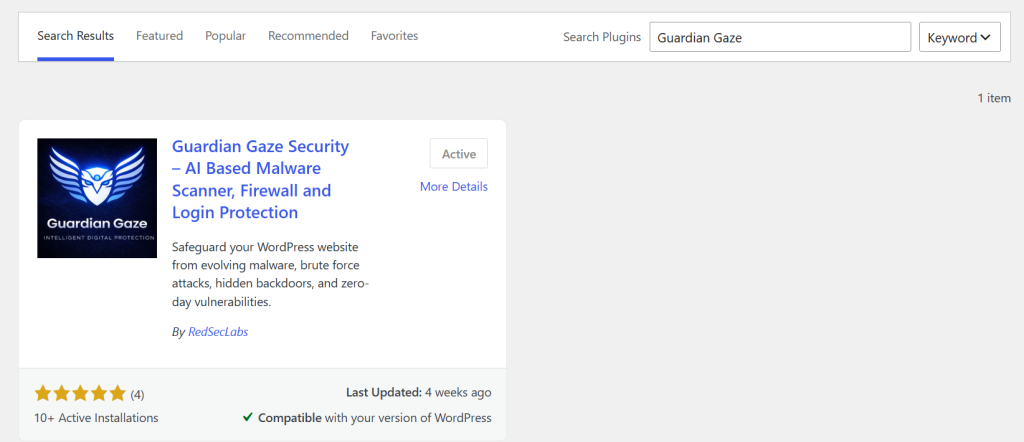
Once activated, you’ll find the Guardian Gaze dashboard in your WordPress admin menu.
Step 2: Run a Malware Scan
Navigate to:
Guardian Gaze → Malware Scan
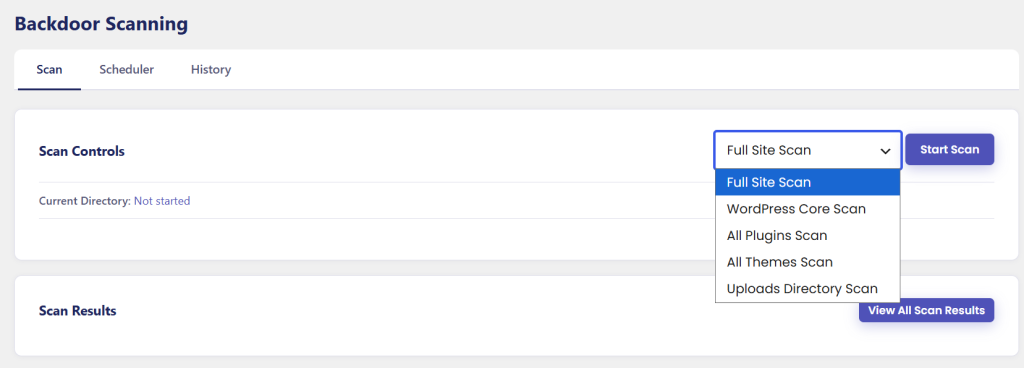
You’ll see multiple scanning options available.
| Full Site Scan | Scans your entire WordPress installation, including core files, plugins, themes, and uploads. This is the recommended option for most users. |
| WordPress Core Scan | Checks WordPress core files for unauthorized modifications and suspicious code. |
| All Plugins Scan | Scans all installed plugins for known malware signatures and suspicious activity. |
| All Themes Scan | Reviews active and inactive themes for potentially malicious files. |
| All Themes Scan | Reviews active and inactive themes for potentially malicious files. |
| Uploads Directory Scan | Scans the uploads folder, a common location where attackers hide malware disguised as images or documents. |
For the most comprehensive scan, select Full Site Scan and click Start Scan.
Guardian Gaze will begin analyzing your website for malware, backdoors, suspicious code, and other security threats.
Step 3: Review the Scan Results
After the scan is complete, Guardian Gaze displays a detailed report of the findings.
If no issues are found, your website is likely clean.
If suspicious activity is detected, the plugin will highlight:
- Malicious files
- Potential backdoors
- Suspicious code injections
- Modified WordPress files
- Security risks that require attention
The scan results help you quickly identify where problems exist and what action should be taken.
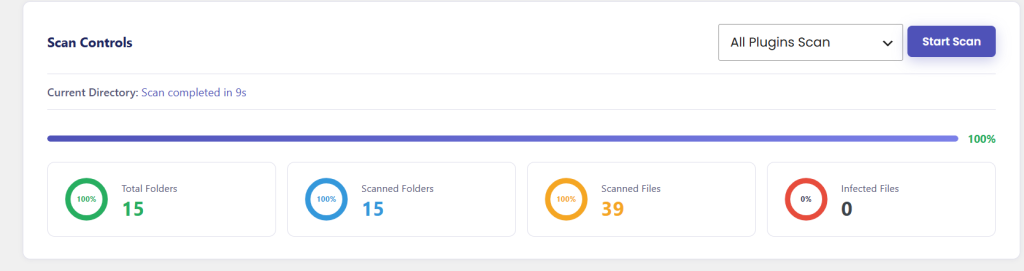
We ran the All Plugins Scan. Guardian Gaze scanned 15 plugin folders containing 39 files and found no infected files, indicating that all scanned plugin files are clean.
What Happens If Malware Is Found?
Finding malware on your website can be alarming, but acting quickly can prevent further damage.
Option 1: Remove the Malicious Files
If Guardian Gaze detects malicious files on your website, you can remove them to eliminate the threat and protect your WordPress installation.
We’ve also published a detailed guide, WordPress Malware Removal 2026: Complete Detection & Removal Protocols, which walks you through the malware removal process step by step. Be sure to check it out if you need additional guidance.
Before deleting any files, always create a full backup of your website. A backup allows you to quickly restore your site if anything unexpected occurs during the cleanup process.
Option 2: Get Expert Malware Removal Assistance
If you prefer not to handle the cleanup yourself, you can choose to get expert malware removal assistance.
A WordPress security expert can:
- Remove all detected malware
- Eliminate hidden backdoors
- Secure your WordPress installation
- Identify how the infection occurred
- Help strengthen your website against future attacks
This is often the best option for business websites, eCommerce stores, or heavily infected websites where you want the cleanup handled professionally.
You can also consult our security experts for malware removal and WordPress security guidance. They’ll help ensure your website is thoroughly cleaned and protected against future threats.
What Is a WordPress Malware Scanner?
A WordPress malware scanner is a security tool that examines your website for malicious code, infected files, backdoors, unauthorized modifications, and other security threats.
Instead of manually checking thousands of files, a malware scanner automatically analyzes your WordPress installation and identifies suspicious activity.
A quality malware scanner helps detect:
- Malware infections
- Backdoor access points
- Hidden malicious files
- Suspicious code injections
- Unauthorized file modifications
- Security vulnerabilities
Regular scanning is one of the simplest ways to strengthen your overall website security and reduce the risk of future attacks.
Why Regular WordPress Security Scans Matter
Many website owners don’t realize their site has been compromised until serious damage has already occurred.
An infected WordPress site can lead to:
- Search engine penalties
- Website downtime
- Visitor redirects
- Spam content injection
- Data theft
- Loss of customer trust
Regular security scans help identify threats early, allowing you to address them before they impact your website or business.
How Often Should You Scan Your Website?
The ideal scanning frequency depends on your website activity and risk level.
For Most Websites: Run a malware scan at least once per week.
For High-Traffic Websites or Online Stores: Run scans daily to quickly identify potential threats.
Always Scan After:
- Installing a new plugin
- Installing a new theme
- Updating WordPress
- Restoring a backup
- Noticing unusual website behavior
- Suspecting a security issue
The more frequently you scan, the faster you can detect and remove threats.
Best Practices to Prevent Future Malware Infections
While a WordPress malware scanner is essential, prevention is equally important.
Follow these security best practices:
- Keep WordPress updated
- Update plugins and themes regularly
- Use strong passwords
- Enable two-factor authentication (2FA)
- Remove unused plugins and themes
- Avoid nulled software
- Schedule regular malware scans
- Back up your website frequently
Combining proactive security measures with routine scanning significantly reduces the risk of malware infections.
Summary
Malware can affect any WordPress website, but regular scanning makes it much easier to detect and eliminate threats before they cause serious damage.
With Guardian Gaze, you can quickly scan WordPress for malware, identify suspicious files, detect backdoors, and improve your overall WordPress security without needing advanced technical knowledge.
Whether you’re managing a personal blog or a large business website, regular malware scans should be part of your ongoing website maintenance routine.
Install the free Guardian Gaze WordPress Malware Scanner today and keep your website protected from malware, backdoors, and other security threats.